> ## Documentation Index
> Fetch the complete documentation index at: https://docs.opennous.cloud/llms.txt
> Use this file to discover all available pages before exploring further.
# Gmail & Google Calendar
> Sync emails and calendar events automatically via Google OAuth.
This requires registering a Google OAuth app. You do this once as the server admin — your users then connect their own Google accounts via the UI.
## Server Setup
Go to [console.cloud.google.com](https://console.cloud.google.com) and create a new project (or use an existing one).
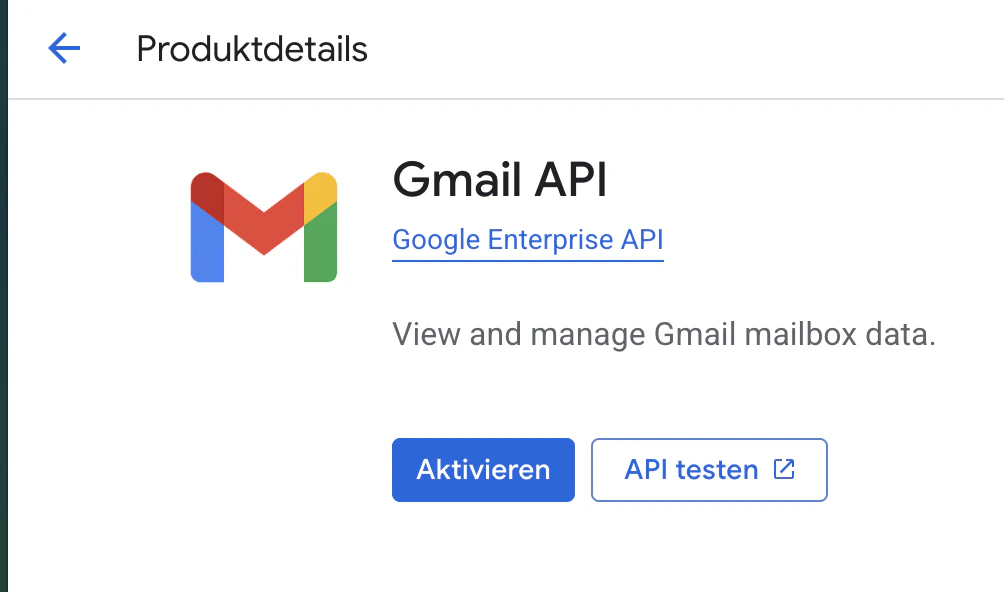
In the sidebar go to **APIs & Services → Library**. Search for and enable both:
* **Gmail API**
* **Google Calendar API**
 Go to **APIs & Services → OAuth consent screen**. Choose **External**, fill in the app name and your email, then add these scopes:
```text theme={null}
https://www.googleapis.com/auth/gmail.readonly
https://www.googleapis.com/auth/calendar.readonly
```
Add your own email as a test user while in development.
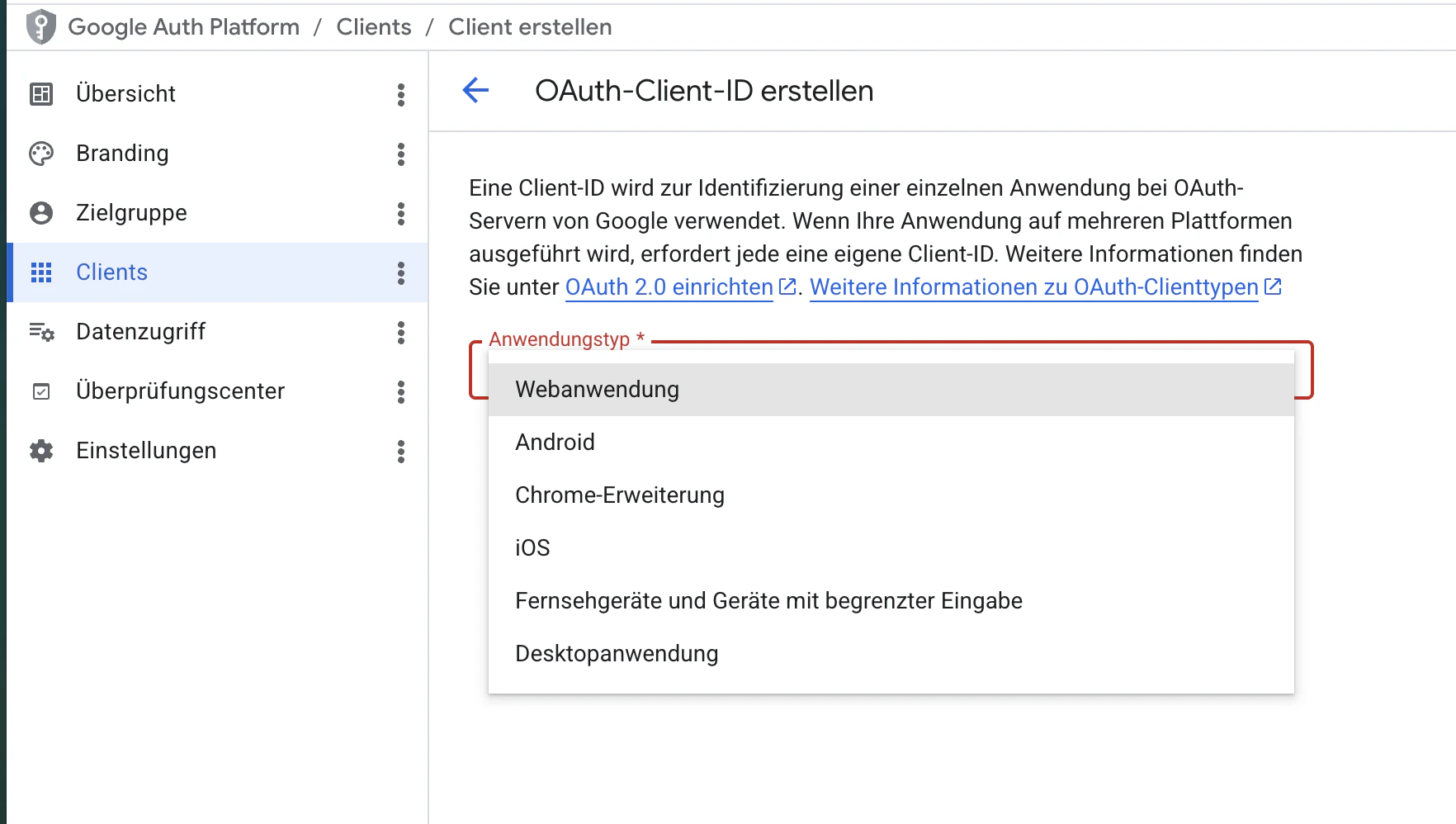
Go to **APIs & Services → Credentials → Create Credentials → OAuth client ID**. Choose **Web application** and add your redirect URI:
Go to **APIs & Services → OAuth consent screen**. Choose **External**, fill in the app name and your email, then add these scopes:
```text theme={null}
https://www.googleapis.com/auth/gmail.readonly
https://www.googleapis.com/auth/calendar.readonly
```
Add your own email as a test user while in development.
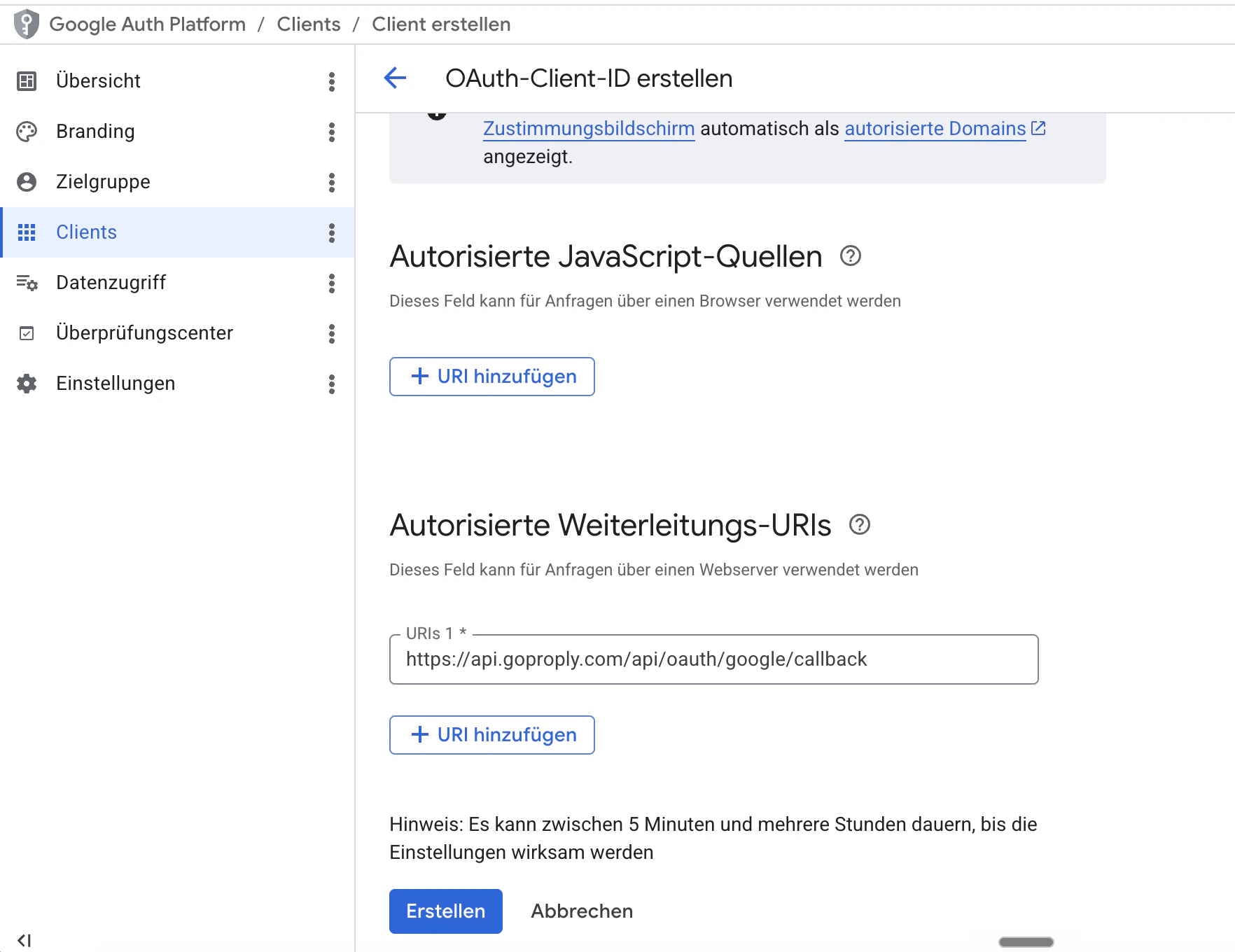
Go to **APIs & Services → Credentials → Create Credentials → OAuth client ID**. Choose **Web application** and add your redirect URI:
 ```text theme={null}
https://api.yourdomain.com/api/oauth/google/callback
```
```text theme={null}
https://api.yourdomain.com/api/oauth/google/callback
```
 After creating, copy the **Client ID** and **Client Secret**.
```bash theme={null}
GOOGLE_CLIENT_ID=your-client-id
GOOGLE_CLIENT_SECRET=your-client-secret
GOOGLE_OAUTH_REDIRECT_URI=https://api.yourdomain.com/api/oauth/google/callback
```
Restart your containers after saving.
## Connecting in Nous
Once the server is configured, each workspace connects their own Google account:
1. Go to **Integrations**
2. Click **+ Add Integration → Google Calendar / Gmail**
3. Complete the OAuth flow in the popup
## What gets synced
| Data | How | Frequency |
| --------------------------- | ------------ | ------------ |
| Sent & received emails | Gmail API | Every 30 min |
| Calendar events + attendees | Calendar API | Every 10 min |
After creating, copy the **Client ID** and **Client Secret**.
```bash theme={null}
GOOGLE_CLIENT_ID=your-client-id
GOOGLE_CLIENT_SECRET=your-client-secret
GOOGLE_OAUTH_REDIRECT_URI=https://api.yourdomain.com/api/oauth/google/callback
```
Restart your containers after saving.
## Connecting in Nous
Once the server is configured, each workspace connects their own Google account:
1. Go to **Integrations**
2. Click **+ Add Integration → Google Calendar / Gmail**
3. Complete the OAuth flow in the popup
## What gets synced
| Data | How | Frequency |
| --------------------------- | ------------ | ------------ |
| Sent & received emails | Gmail API | Every 30 min |
| Calendar events + attendees | Calendar API | Every 10 min |